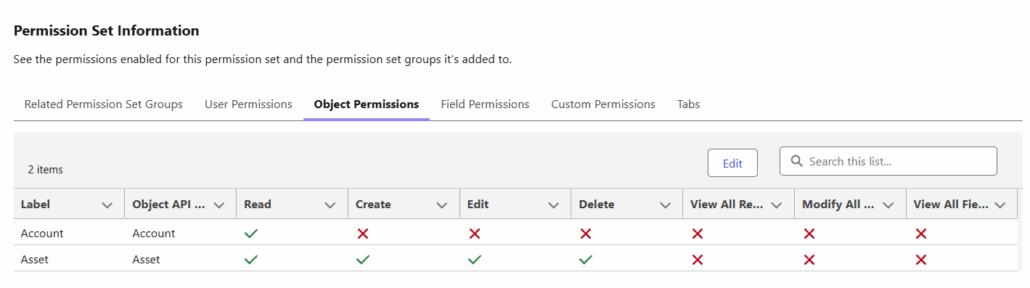
Permission Sets are a way to extend users’ access without changing their profiles. For example, you can expand access to custom objects, system permissions, and apps via Permission Sets.
Pre-Requisite:
- You will need the ‘Assign Permission Sets’ and ‘View Setup and Configuration’ user permissions to assign permission sets to other users.
- Permission sets in Salesforce grant specific access based on a user’s license, which defines their overall capabilities. A permission set can only be assigned if it’s compatible with the user’s license.
Steps:
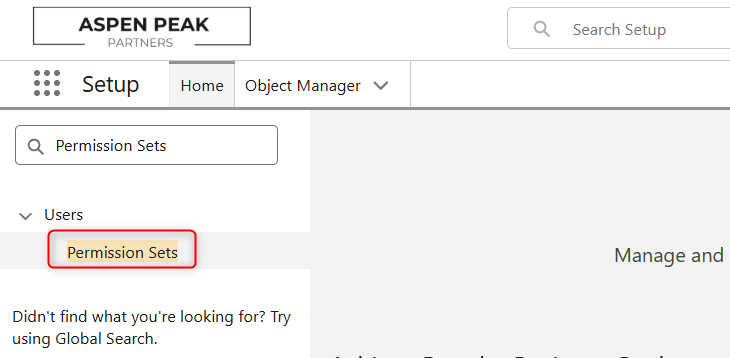
- From the Home tab in Setup, in the Quick Find search box, search for ‘Permission Sets’ and select the result.
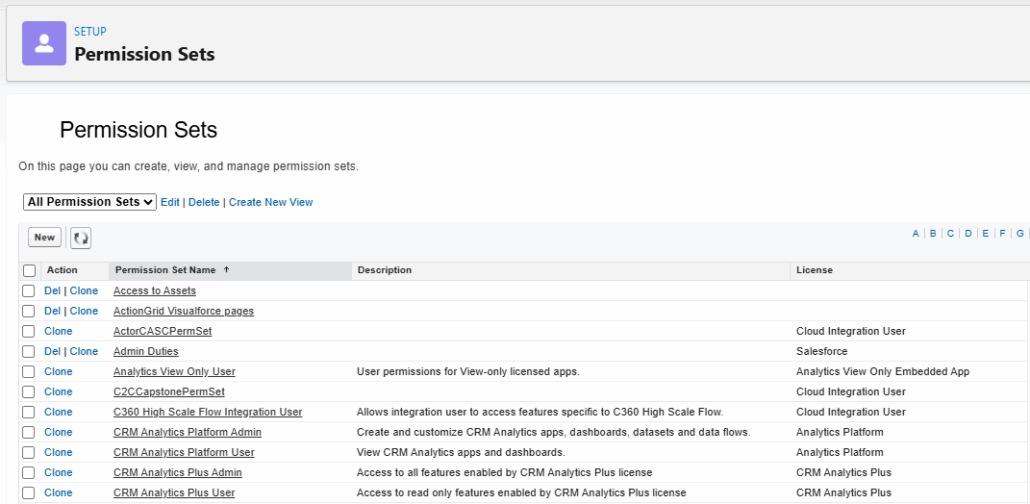
- A list of existing permission sets will display on the new page. Select the Permission Set you wish to assign by clicking on the name.
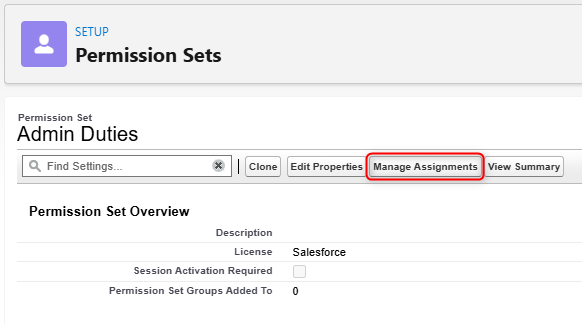
- On the selected Permission Set’s page, you will see options next to the Find Settings search box. Click on ‘Manage Assignments’ to begin assigning this permission set to users.
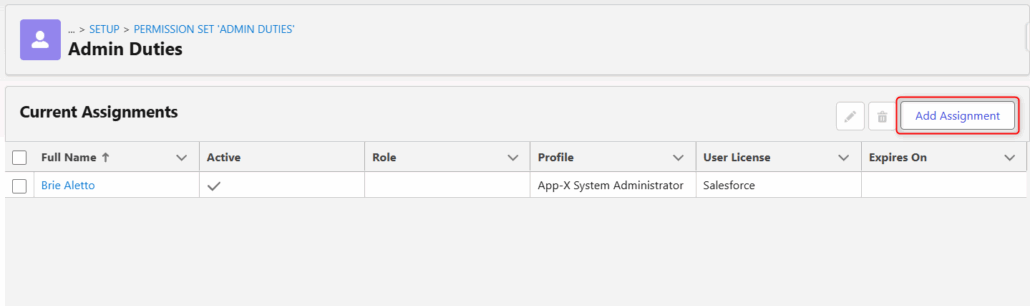
- On the Manage Assignments Page, you will see a list of users with the Permission Set assigned, along with some additional information related to that user account. Click on the ‘Add Assignment’ to assign the permission set to a new user.
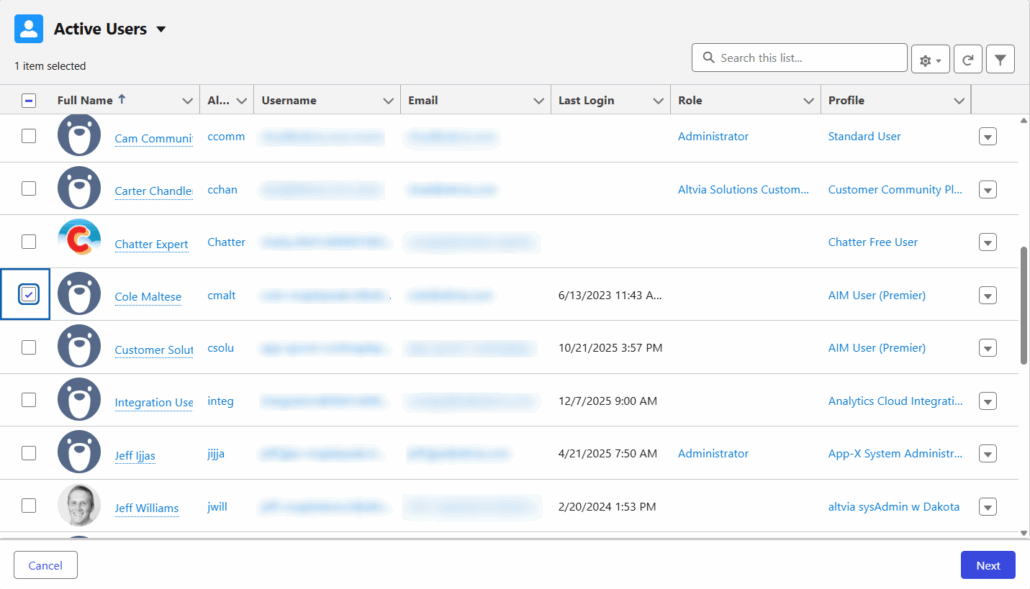
- Locate the desired user, and then tick the checkbox to the left of the user name. Once the desired user has been selected, click the ‘Next’ button.
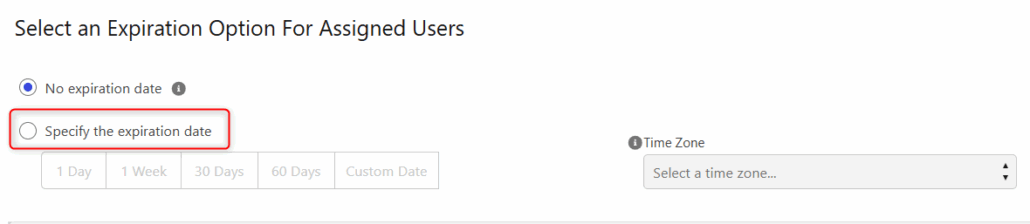
- Optionally, you can give the Permission Set assignment an expiration date for the user.
- Once you have made your selection, click ‘Assign’.
Permission Set Summary
On the Permission Set’s page, you can use the ‘View Summary’ button next to Manage Assignments to review what permissions are being extended.

The ‘Permission Set Information’ section of the new page will detail the object, user, field, and custom permissions included in this set.