
Related Lists are one of the most powerful features in the CRM. They give users quick visibility into connected records—such as Contacts linked to an Account, or Fundraising Opportunities tied to an Entity—without having to run a separate search. To make them available to your users, you’ll need to configure both the Page Layout and the Lightning Record Page.
Pre-requisite:
- Admin access with the ‘Customize Application‘ permission is required to make these changes.
Step 1: Add Related Lists to the Page Layout
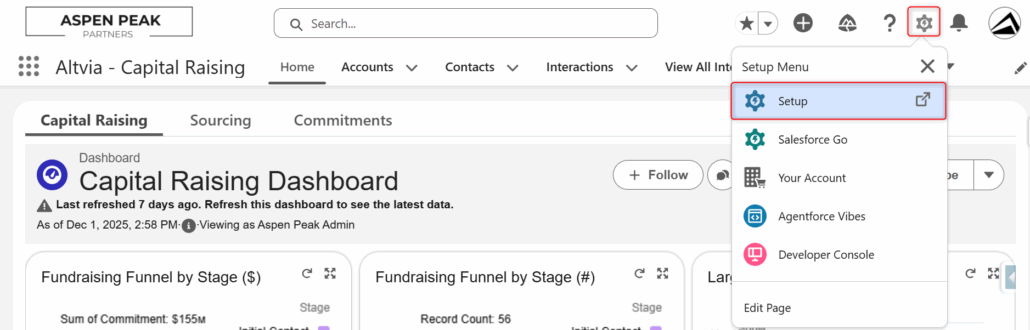
- Navigate to Setup → Object Manager.
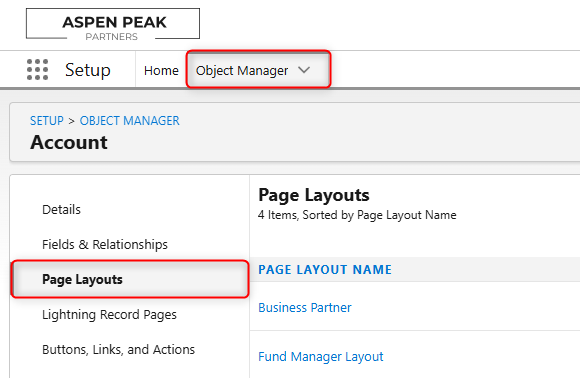
- Select the object you want to edit (e.g., Account).
- Go to Page Layouts.
- Choose the layout you want to modify.
- In the palette, drag the desired Related List (e.g., Contacts, Fundraising Opportunities) onto the layout.
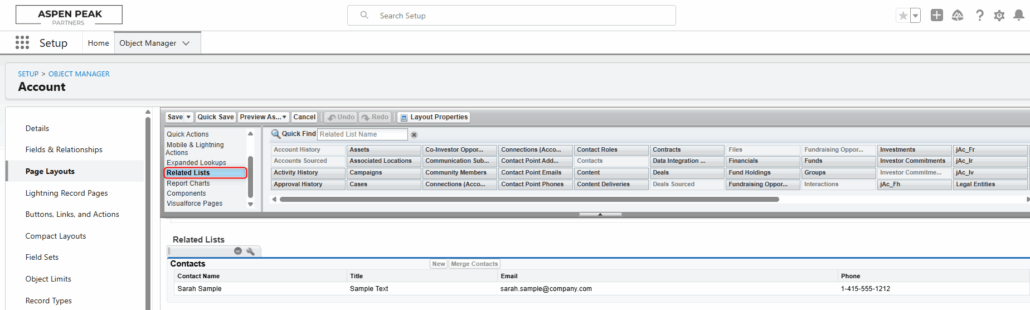
- Optional: Specify which fields will be visible in the related list.
- Locate the related list you added in the related lists section of the layout and click on the wrench icon

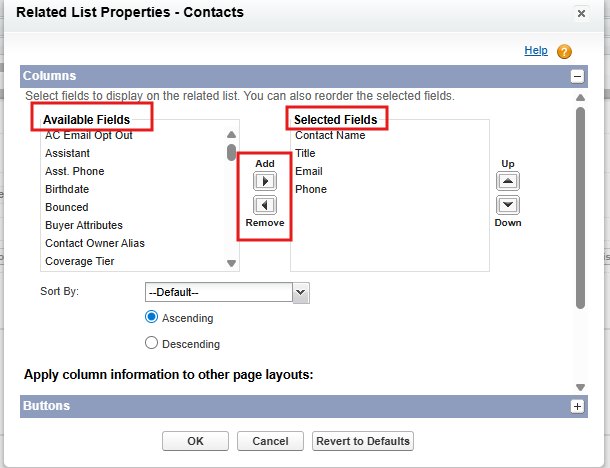
- Move any of the fields that you want to see in the related list from the ‘Available Fields’ box to the ‘Selected Fields’ box using the add and remove arrows.
- The Up and Down Arrows can also be used to modify the order of the fields.
- Once you’re done, click on the ‘OK’ button.
- Locate the related list you added in the related lists section of the layout and click on the wrench icon
- Save your changes.
At this stage, the related list is technically part of the record’s layout, but it still won’t appear to users until you add it to the Lightning Record Page.
Step 2: Add Related Lists to the Lightning Record Page
- Go to a record in Lightning Experience (e.g., open an Account).
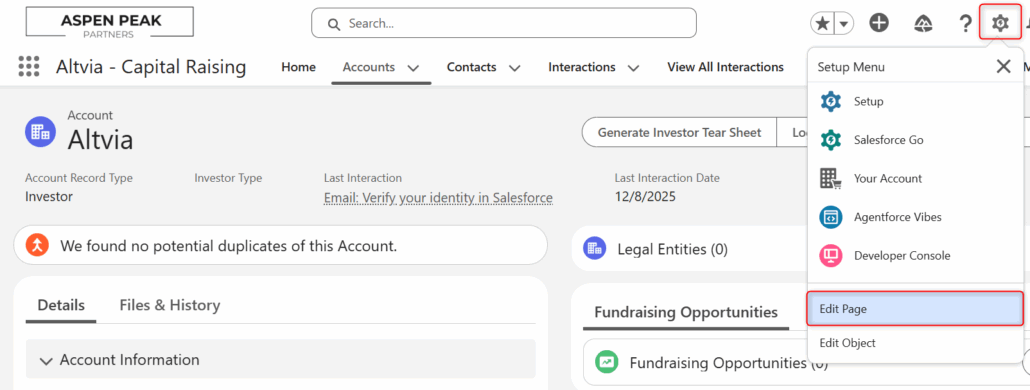
- Click the gear icon → Edit Page.
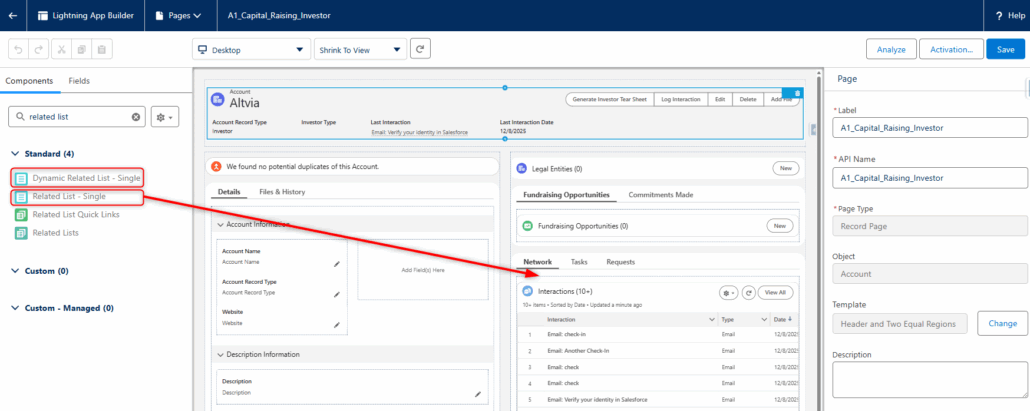
- From the Lightning App Builder, drag the DynamicRelated Lists or Related List – Single component onto the page.
- Dynamic Related Lists: displays a group of related lists.
- Related List – Single: focuses on one related list with more detail. Below is a breakdown of the different related list types available for the Related List – Single component.
- Default
- Automatically chooses the best available layout based on object support.
- Behaves like Basic unless a more advanced type (like Enhanced List) is supported.
- Basic List
- Standard related list layout that follows the Page Layout settings.
- Simple, reliable, and shows all visible columns defined on the page layout.
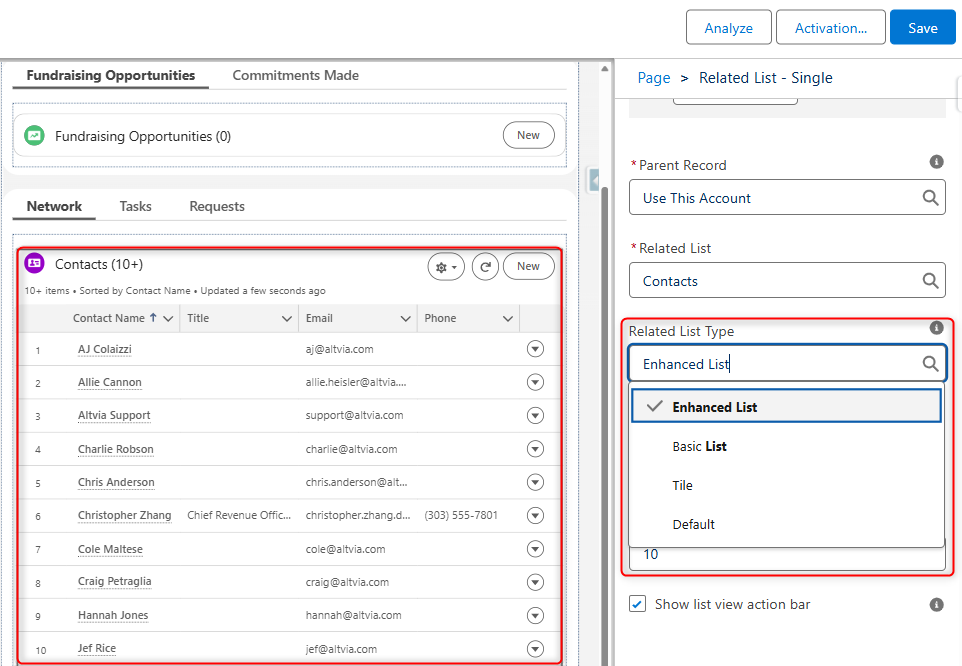
- Enhanced List
- A more interactive related list with column resizing, sorting, and show/hide columns.
- Works like a mini list view and provides a more flexible user experience.
- Tile
- Displays related records as visual cards/tiles instead of rows.
- Best for objects with visual or status-driven data; only available when Salesforce provides tile support.
- Default
- Configure the component to show the related list(s) you added to the Page Layout.
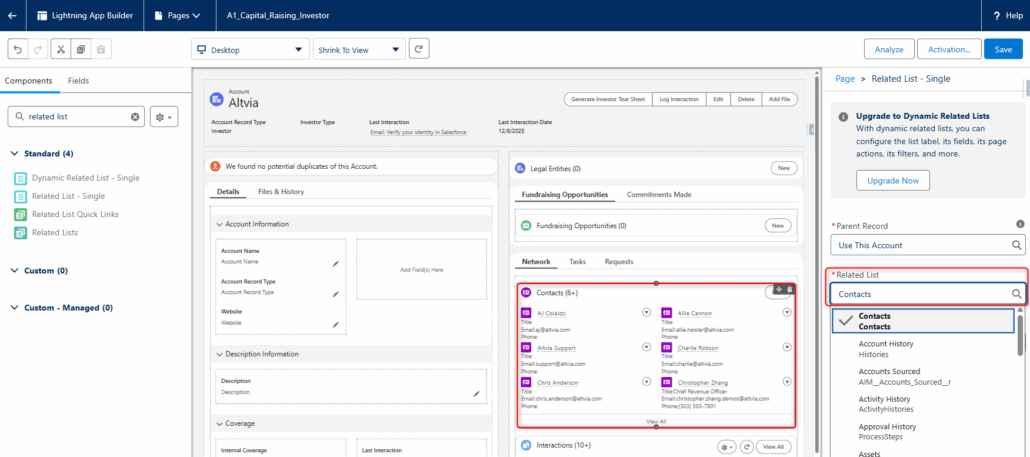
- Related List – Single specific step: To change the related list type, click on the related list widget.
- You should see a widget open on the right side of the page
- Click on the ‘Related List Type’ field and select your preferred type
- Save the Lightning Record Page.
