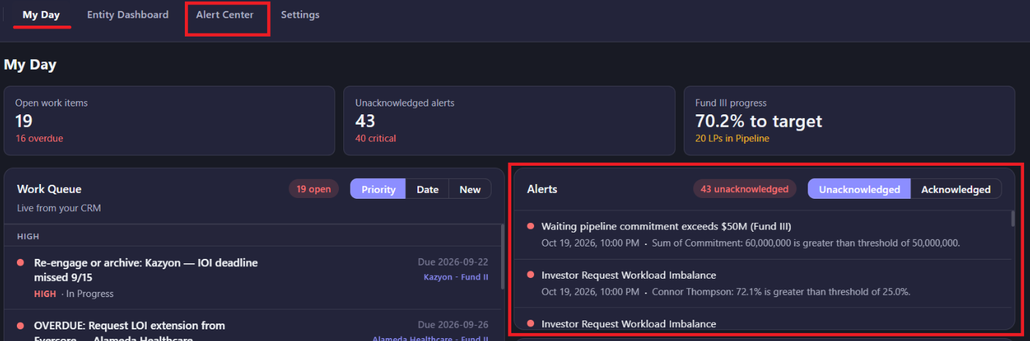
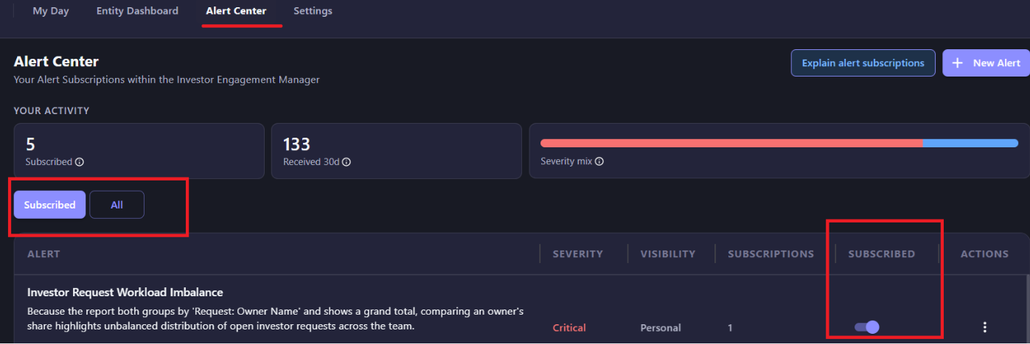
Alerts you’re subscribed to show up in two places: the Alert Center, where you browse and subscribe or unsubscribe, and the Alerts panel on My Day, where fired alerts actually land for you to act on. Most alerts check your data once a day overnight. Fundraising Stage Change is the exception, it fires immediately when a stage changes. A few signal types, such as flagging a slow LP response pattern, are more accurate with Email Sync, since they reflect actual conversation activity rather than just CRM updates, though connecting email is optional and not required for Alerts to work.
Steps
- In the Alert Center, toggle between Subscribed and All to see what you’re currently receiving versus everything available, and subscribe or unsubscribe as needed.
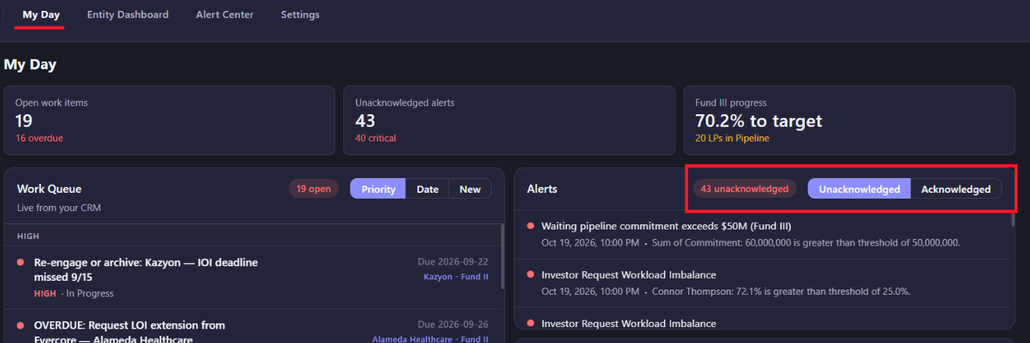
- On the My Day page, check the Alerts panel for what’s actually fired. Toggle between Unacknowledged and Acknowledged to see what still needs attention versus what’s been cleared.
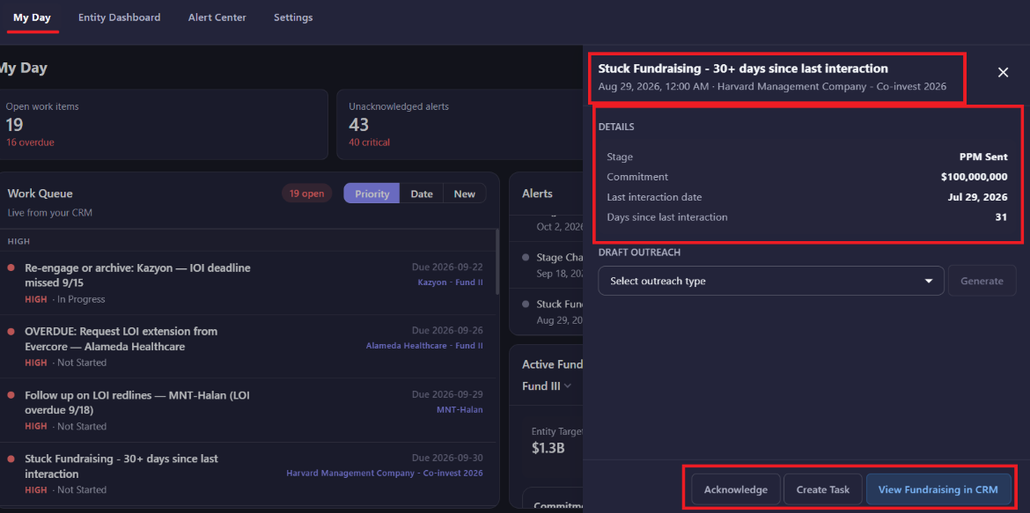
- Click on an Alert to see its details: category, severity, visibility, when it was created, and what triggered it (for example, a specific fund falling below a threshold).
- If the alert is tied to a single record, use View in CRM to jump straight to it, and Create Task to turn it into a task. If it’s a report-wide alert (an aggregate breach with no single underlying record, like a total falling below a floor across all entities), you’ll see View Report in CRM instead, and no Create Task option, since there’s no single record for a task to attach to.
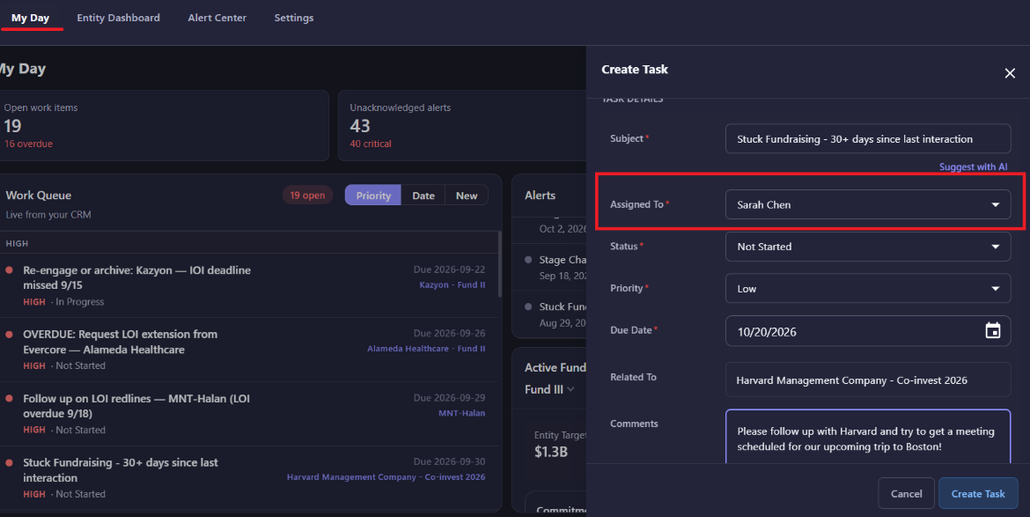
- Creating a task from an alert opens an editable screen before the task is saved. Use it to reassign the task to a colleague (Assigned To), adjust the subject (use AI to suggest a quick summary), and set status, priority, due date, and comments. By creating a task, the alert will become Acknowledged and be removed from your Alerts Panel.
*Note that this option requires the alert to have a related record, so if you’re building or maintaining a report for alerting, include a Record ID column for the object the report is on to make sure Create Task (and View in CRM) work.
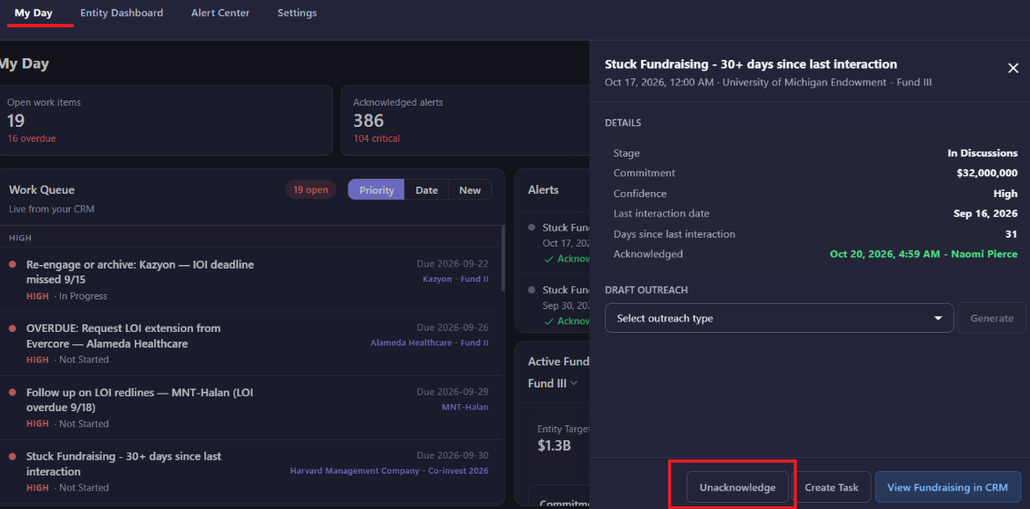
- Once you’ve handled an alert, acknowledge it. It moves to the Acknowledged tab, which shows who handled it and when.
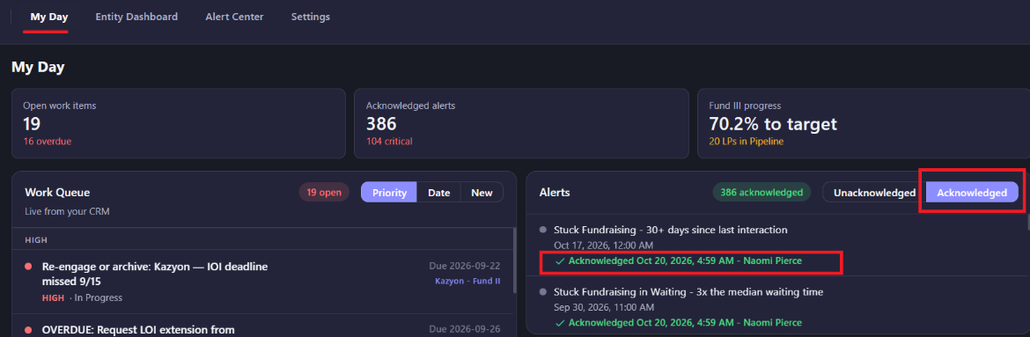
- If an acknowledged alert needs another look, reopen it by toggling the panel to ‘Acknowledged’ and then click into the alert and select the ‘Unacknowledge’ Button