
Alerts can turn a report you already check manually into something that watches itself, so you catch a stalled fundraising opportunity or a quiet LP before it becomes a surprise. Every alert is based on a report you already have access to, and it’s created and managed from the Alert Center.
Steps
- Open the Alert Center from the top navigation bar and select New Alert.

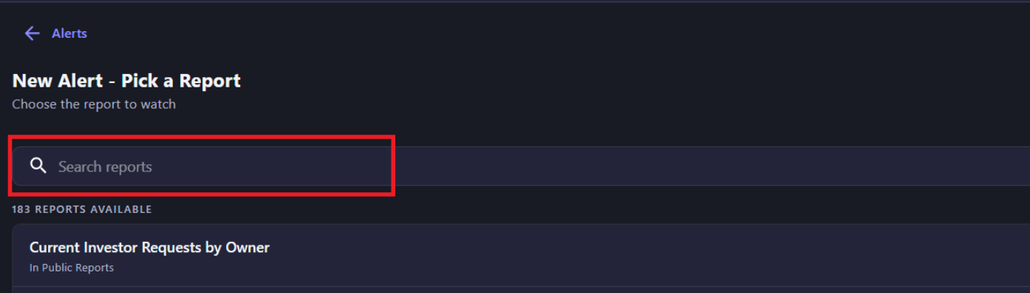
- Select any report to generate an alert from (use the search bar to search all reports you have access to).
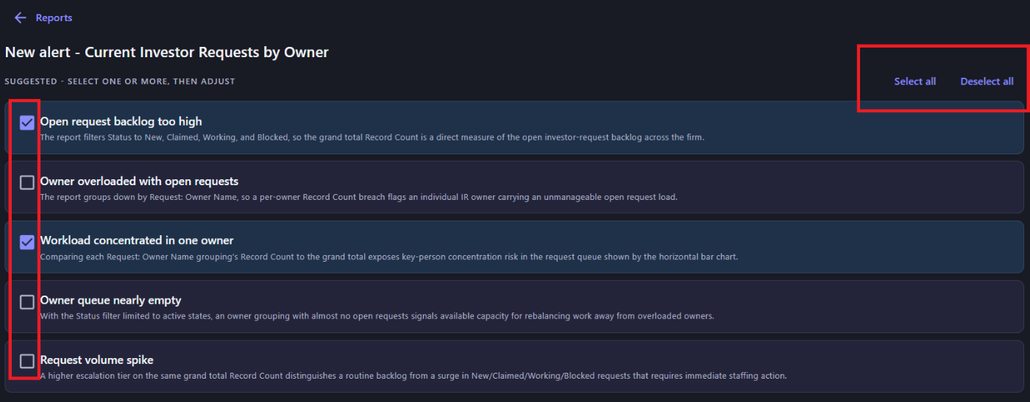
- Up to 5 suggested alerts will appear. You can select to create alerts for all options or just check the suggestions that you want to follow.
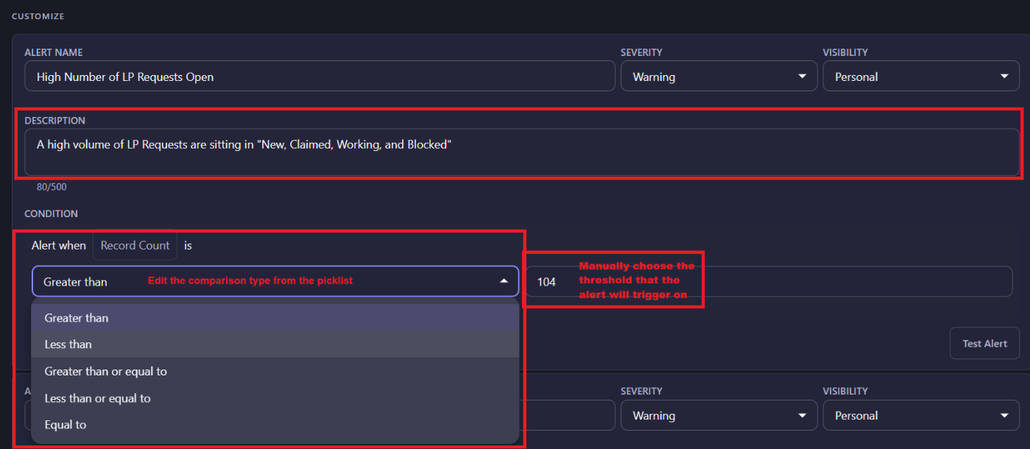
- Review the comparison value & threshold for the alert to be created. If needed, you can adjust the comparison (greater than, less than, equal to, and more) and threshold value. Additionally, you can edit the description so it still makes sense after you change the numbers.
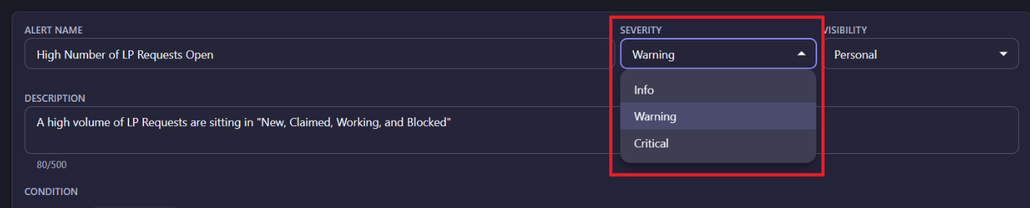
- Name the alert and set its severity.
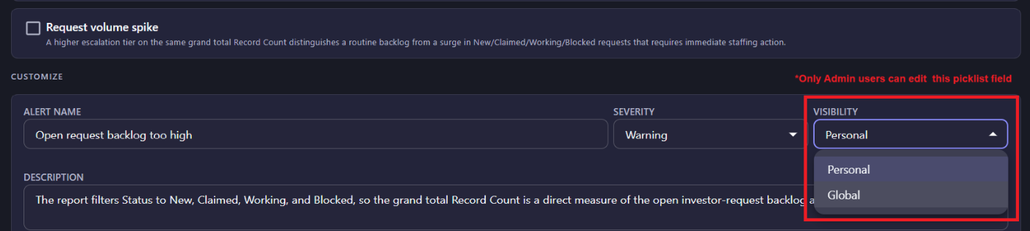
- As an admin, you can set the alert’s visibility to control who can see it, for example, keeping it personal or making it visible to your wider team. Standard users will create alerts only for themselves.
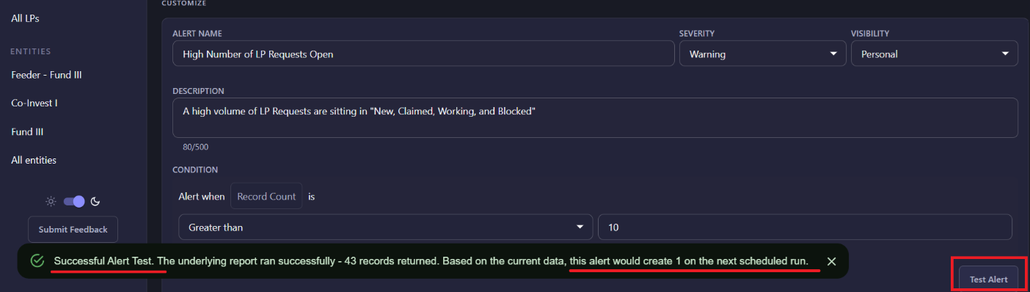
- Run Test Alert to see how many records the report returns and whether the alert would actually fire, before turning it on.
- Save the alert. You’re automatically subscribed once it’s created.
From the Alert Center, you can also toggle between Subscribed (your own alerts) and All (every alert available to you) to find and subscribe to alerts your admin has already created.
Was this helpful?
Thanks for your feedback!