
When a follow-up is overdue after a call or an alert flags that an LP needs a response, the Communications Drafter gives you a first draft grounded in that relationship’s real history instead of a blank page or a generic template. You still review and send the message yourself; nothing sends automatically.
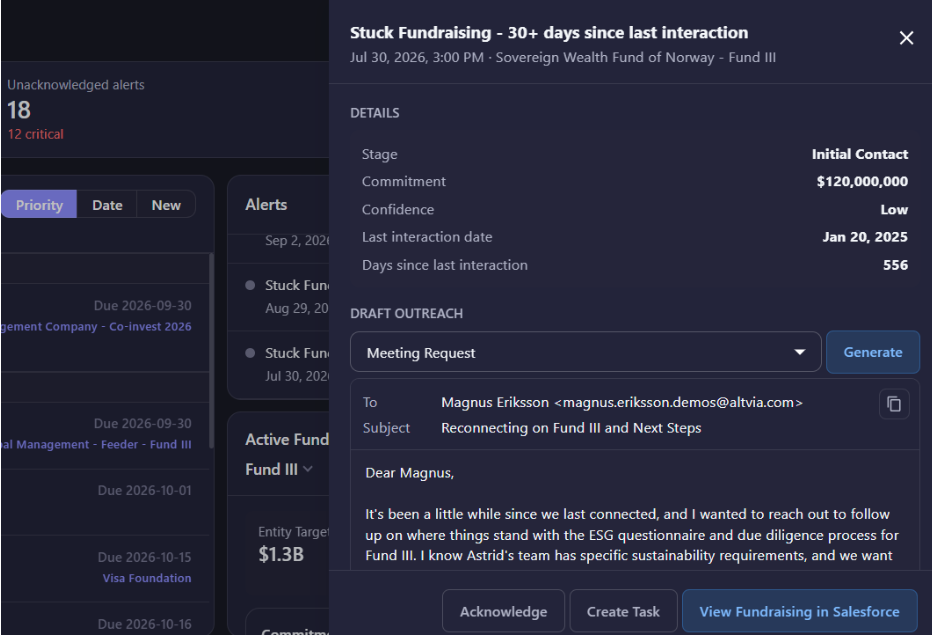
Steps
- Start from either the LP 360 page or any alert related to an Account or Fundraising record, and you’ll see a Draft Outreach button.
- Pick the situation that fits: Re-Engage, Re-Up, Advance Commitment, Meeting Request, or LP Update.
- Select Generate.
- Copy the draft in one click and send it from your own inbox.
- Log the email as an interaction in the CRM. If you have enabled Auto Sync for Email Sync, your sent message will immediately show as an interaction; if not, log it the way you do today.
Was this helpful?
Thanks for your feedback!