
The Fundraising Pipeline gives you a live, filterable view of every investor in your active fundraise, pulled directly from your CRM. Instead of rebuilding your pipeline in a spreadsheet before every meeting or quarter close, you can open Investor Engagement Manager (IEM) and see the current state of the fundraise, including a rolled-up Re-Up Conversion percentage for existing investors who’ve recommitted. This works alongside your existing CRM setup and doesn’t require Email Sync, though connecting email strengthens a few related features elsewhere in IEM.
Steps
- From My Day, check the Active Fundraise panel just below your Alerts for a quick snapshot: entity target, total committed, total commitment in pipeline, and LPs in pipeline.
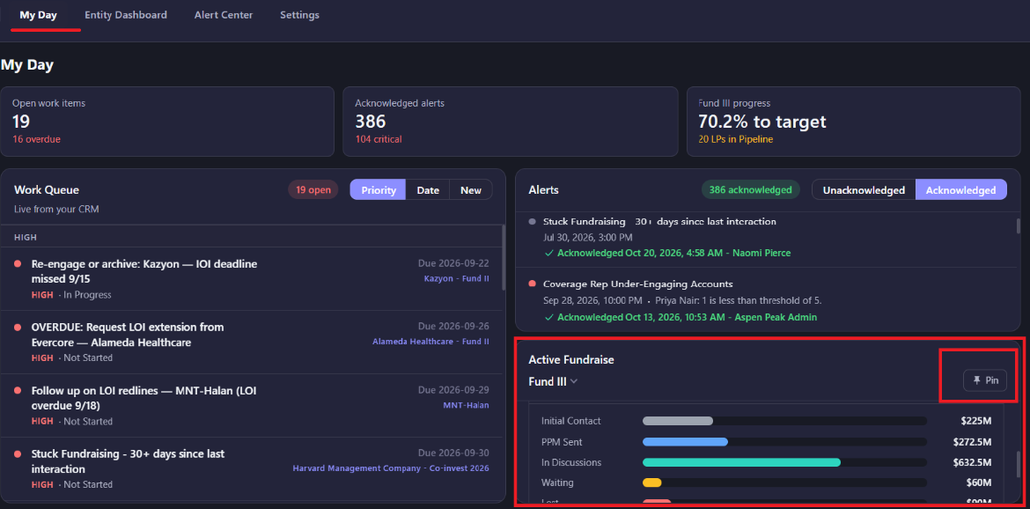
- If you’re tracking more than one raise, use the dropdown on this panel to switch between funds. Click the thumbtack icon to pin one so it’s shown by default the next time you log in.
- For the full pipeline, open the Fundraise Dashboard for the active entity (fund), either from My Day or from the Entity Dashboard.
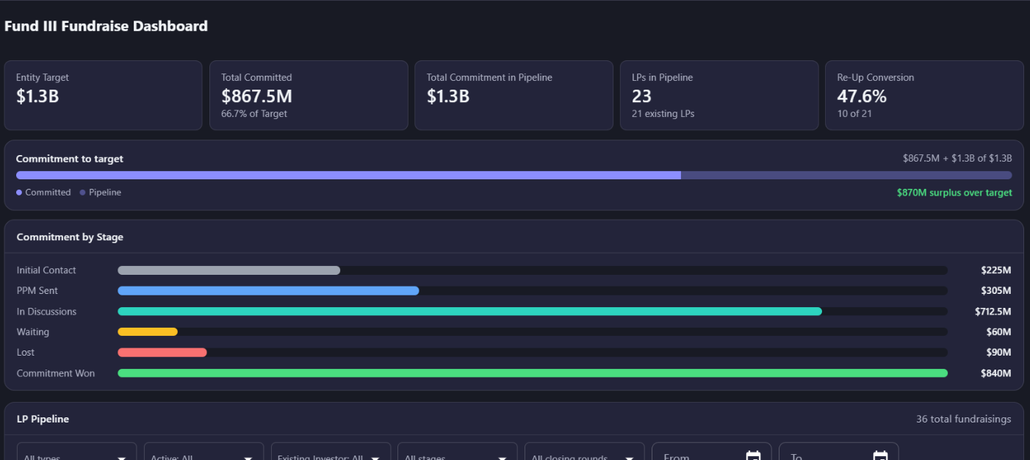
- Review the Commitment by Stage chart at the top of the dashboard, it breaks committed dollars down by stage.
- Scroll to the LP Pipeline table for every investor tied to this fundraise. Filter by: owner, investor type, active status, existing vs. new investor, stage, closing round, or anticipated close date range.
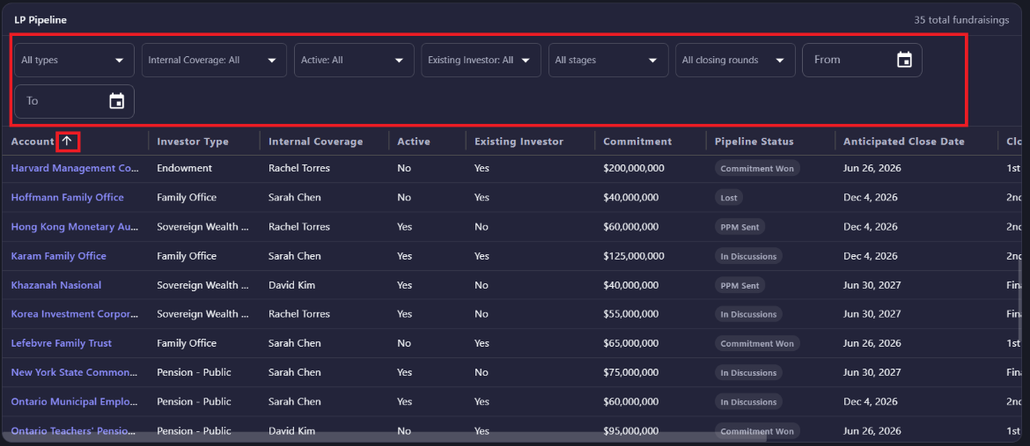
- Sort the table by any column, including Last Interaction Date, to find relationships that have gone quiet the longest.
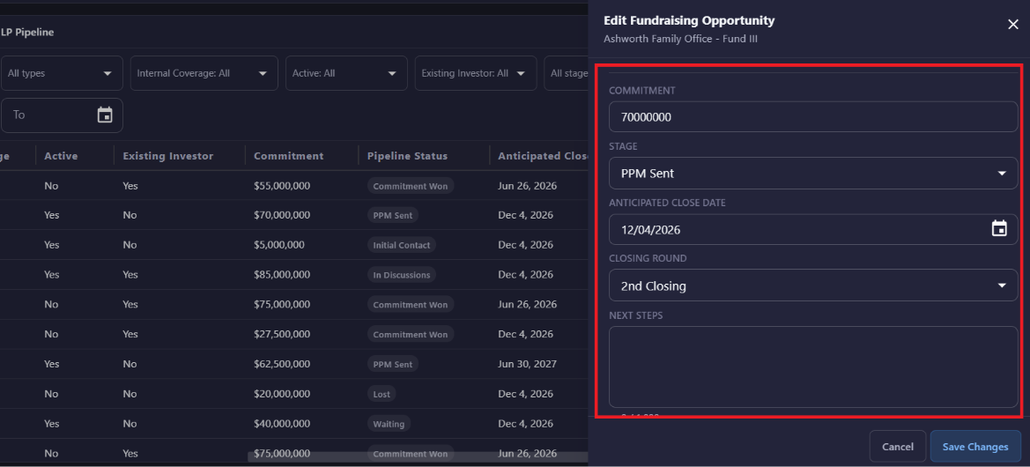
- Scroll to the right to use the action menu (3 dots) on any row and select ‘Edit’ to update Commitment amount, Stage, close date, or closing round. You can also insert/edit next steps and notes. Click the save button and any changes update for the team automatically + sync back to your CRM.
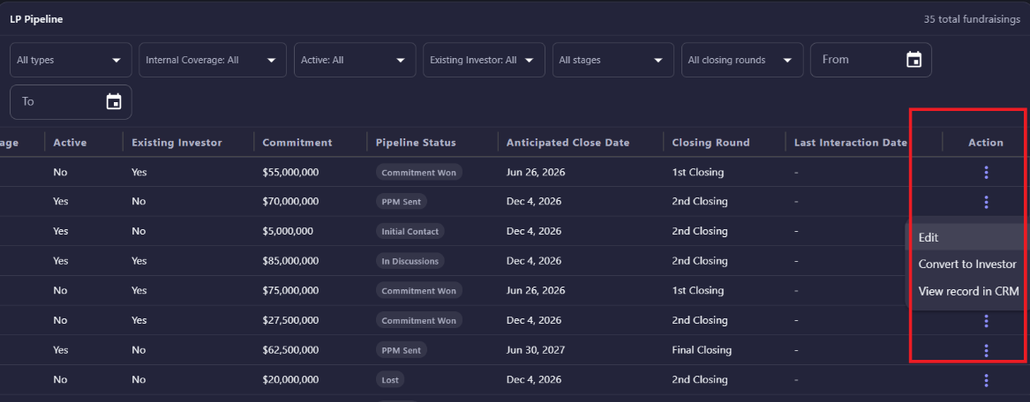
- Once an investor’s commitment is finalized, use Convert to Investor to move it out of the pipeline. This is built for converting a single fundraising opportunity to a single investor record.
Note: If your team uses the +Investors button in the CRM to split one opportunity into multiple investor records or if your team has custom configuration for the Fundraising -> Investor workflow, we’d recommend that you continue using that workflow for now.
About Re-Up Conversion
Re-Up Conversion appears on the Fundraise Dashboard next to entity target, total committed, pipeline value, and LP counts. It’s the percentage of existing investors who’ve recommitted to the current raise, shown as one aggregate figure across the raise rather than a per-investor score. The line beneath the percentage always shows the count it’s based on, for example 25%, 2 of 8.