
LP360 brings everything about an LP onto one page: commitments, contacts, notes, fundraising history, and recent activity, so you’re not piecing it together from multiple views. LP360 reflects what’s already in your CRM, so any updates you make elsewhere in IEM sync back automatically and keep the page current.
Steps
- Click any investor’s name in the LP Pipeline table on a Fundraise Dashboard to open their LP360 page.
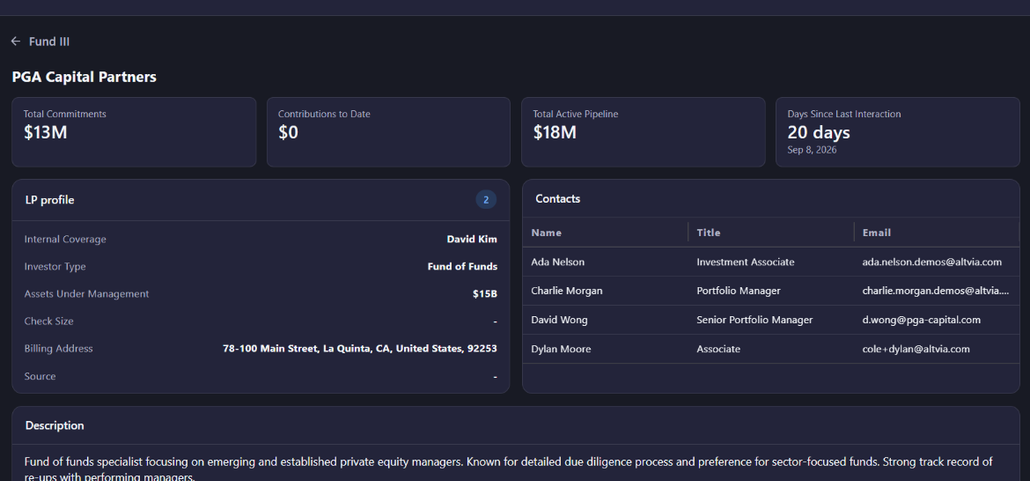
- Check the four stat cards at the top: Total Commitments, Contributions to Date, Total Active Pipeline, and Days Since Last Interaction.
- Review the LP profile panel for internal coverage, investor type, assets under management, check size, billing address, and source.
- Scroll to Contacts for a table of everyone at the LP, name, title, and email, and to Description for background on the firm.
- Check Fundraising opportunities for every fundraising this LP has been part of across all your entities, filterable by active status, existing LP, stage, closing round, and date range.
- Under Investor Commitments, expand any commitment to open its Capital Account Statement: contributions, distributions, and IRR as of the most recent update, plus separate Transaction and Transfer tables underneath.
- Scroll to Recent interactions and Activity overview for a log of touchpoints and a breakdown by type (calls, meetings, and so on).
If an LP has no commitments yet, Investor Commitments will say so, the Capital Account Statement, Transaction, and Transfer tables only appear once there’s a commitment to expand.
Was this helpful?
Thanks for your feedback!