
If you forget your CRM password, you can reset it yourself from the login page. Salesforce emails you a link to choose a new password. If you can’t reset it yourself, your CRM administrator can do it for you.
Before you begin:
- You need access to the email address on your CRM user record.
- If your company signs in to the CRM with single sign-on (SSO), reset your password through your company’s sign-in instead. These steps do not apply to you.
Steps:
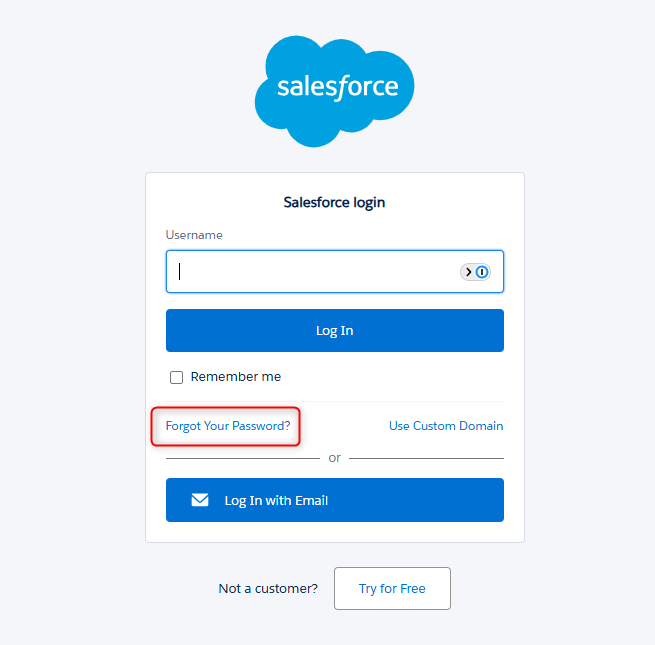
- Go to your CRM login page and click Forgot Your Password?
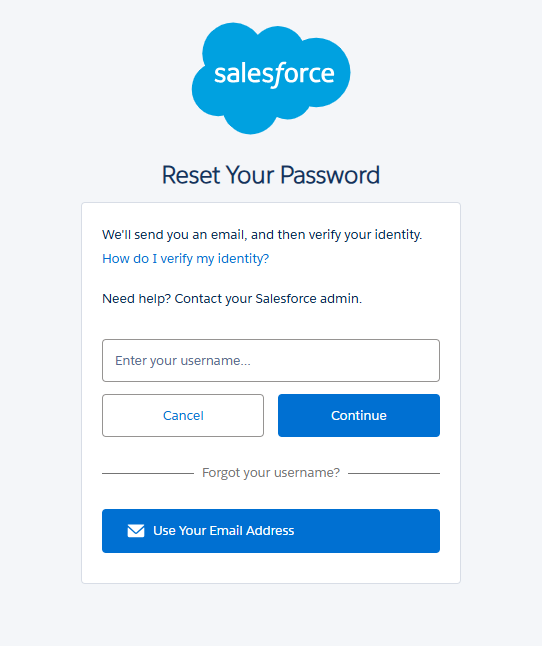
- Enter your CRM username and click Continue.
- Check your email for a message from Salesforce with your reset link. It goes to the email address on your user record. If you don’t see it, check your spam or junk folder, or click Resend the email and repeat step 2.
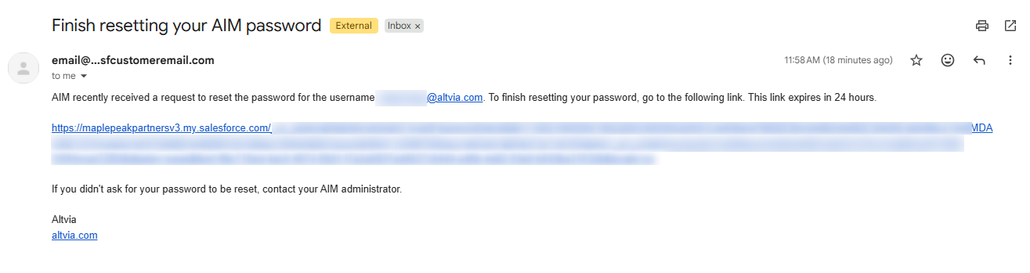
- Click the link in the email within 24 hours. After that, the link expires, and you will need to start again at step 1.
- If you are asked to verify your identity, follow the prompts with your MFA method or your security question.
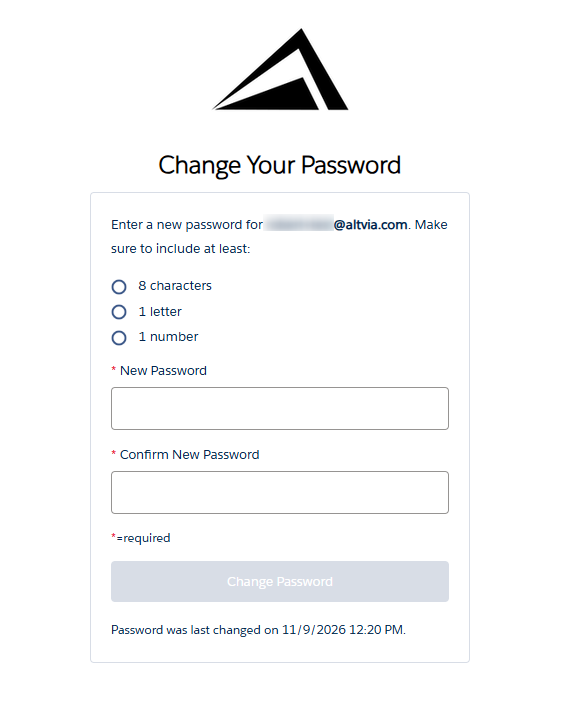
- Enter your new password twice, following the requirements shown on the page, and then log in.
If it doesn’t work:
- No email after a few minutes: check your spam folder, use Resend the email, and confirm you typed the right username. The email goes to the address on your user record, which may not be the one you are checking.
- The link has expired: request a new one, starting at step 1.
- You cannot complete the MFA prompt because you have a new phone: ask your CRM administrator to disconnect your MFA connection (see How to Disconnect a User’s MFA Connection). You will set up a new connection at your next login.
- Still locked out: ask your CRM administrator to reset your password for you (see How to Reset a CRM User’s Password). If you don’t have an administrator, or you still need help, contact Altvia Support.
You can find more information in the Salesforce help article.
Was this helpful?
Thanks for your feedback!