
Register a built-in authenticator (i.e., Touch ID, Face ID, or Windows Hello) to securely verify your identity when logging in with multi-factor authentication (MFA) or completing a device activation challenge. These authenticators use your device’s biometric features or a PIN/password and, once set up, are linked to your CRM account as a verification method. If you don’t see this option, contact your admin to confirm it is enabled.
Before registering a built-in authenticator, keep the following in mind:
- Ensure your device has a supported authenticator (Touch ID, Face ID, or Windows Hello) enabled and set up
- Built-in authenticators are device-specific. If you use multiple devices, register a secondary verification method (such as Salesforce authenticator) to avoid login issues.
- You must be logged in to the CRM on a device to register its built-in authenticator. Initial login requires a secondary verification method or a temporary code from your admin.
- Your device, operating system, and browser must support the FIDO2 WebAuthn standard. Visit the FIDO website and the WebAuthn guide for more information.
- Built-in authenticators are not supported for Experience Cloud sites, the Salesforce mobile app, or API access.
- If you have not yet registered a verification method, you will be prompted to do so when logging in after MFA is enabled. You can register one from your personal CRM settings. Visit this article to learn more.
Steps:
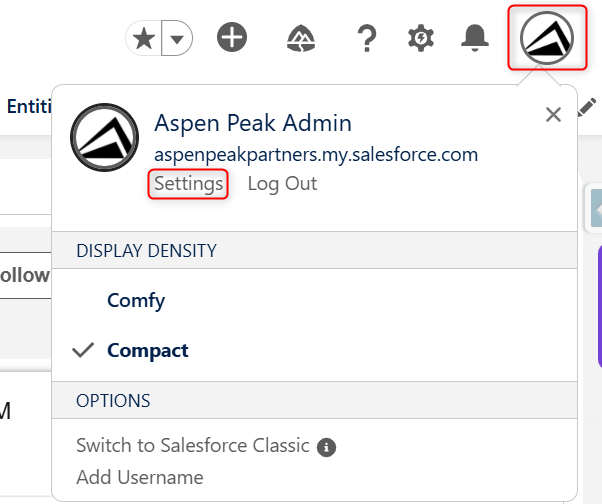
- Navigate to your personal settings by selecting the ‘View Profile’ avatar in the top right corner and clicking ‘Settings’.
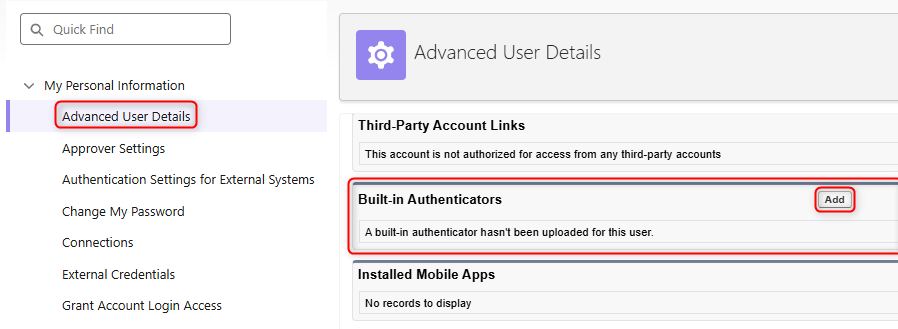
- In the QuickFind bar, search for ‘Advanced User Details’. Once you select the result, scroll down to the ‘Built-in Authenticators’ section and click ‘Add’. If you do not see this option, your CRM admin hasn’t enabled it for your org.
- For security reasons, you may need to either log in again or verify your identity.
- When prompted by the CRM, click ‘Register’.
- Once your browser prompts you, provide the identifier that you previously set up with your built-in authenticator, such as your fingerprint, facial scan, PIN, or password.
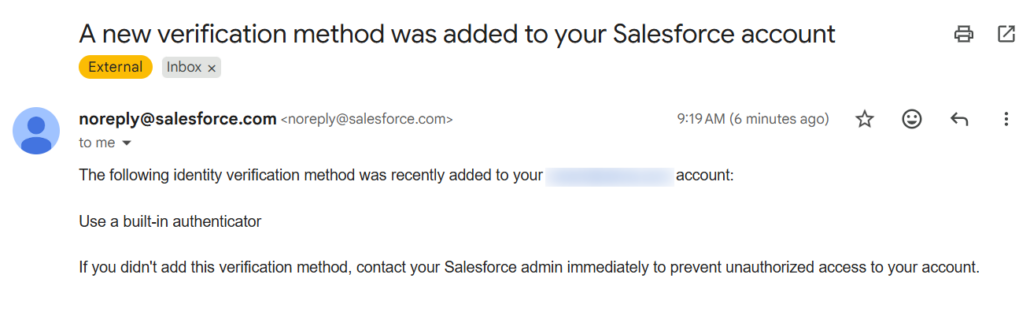
- Name your built-in authenticator and save. Note: to ensure your account is secure, you will receive an email notification whenever a new identity verification method is added to your account.
You are now registered with your built-in authenticator. When logging in to the CRM, you will be prompted to verify your identity, click ‘Verify’, then use your built-in authenticator.
Note: If you are using SSO to access the system. Please work with your IT Team to ensure that your SSO settings pass the correct signals to remain compliant with the security changes. You can provide your IT Team with this Salesforce article, which outlines the signals SSO needs to pass.
