
These instructions apply to any Salesforce user who wants to use a third-party MFA provider instead of the native Salesforce Authenticator app to satisfy Salesforce’s MFA requirement.
Steps:
- Log in to Salesforce, which will prompt you to connect an authenticator app.
- Select ‘Choose Another Verification Method’.
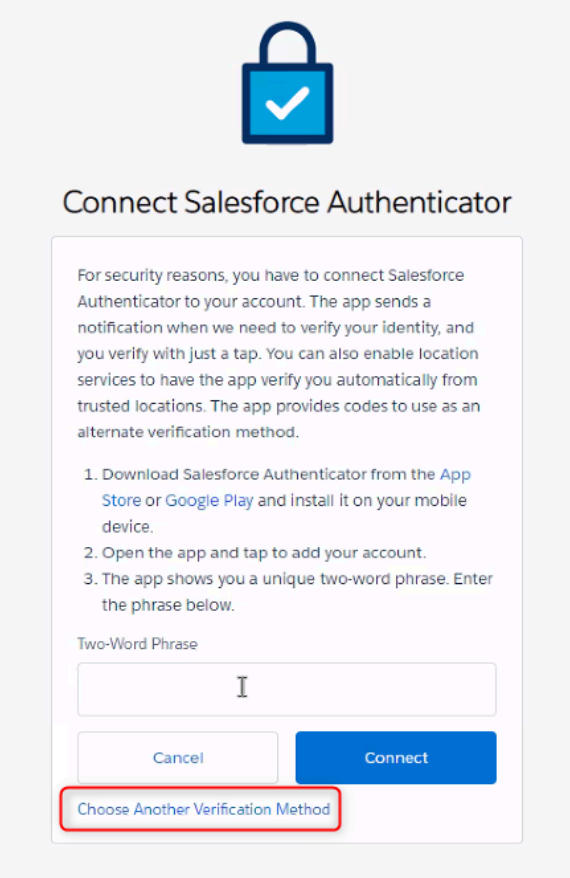
- Select ‘Use verification codes from an authenticator app’.

- Open your authenticator app (Microsoft Authenticator, Google Authenticator, Authy, Duo, etc.) and choose to add an account. The authenticator app should allow you to scan the QR code from the Salesforce login screen to connect the two services.
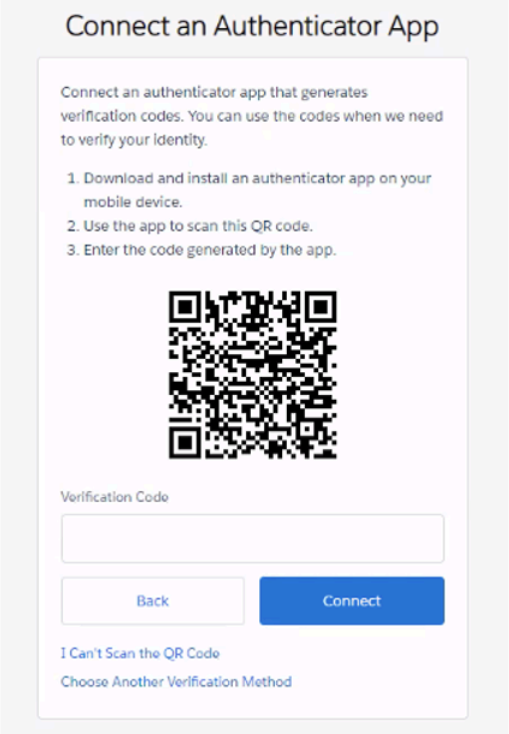
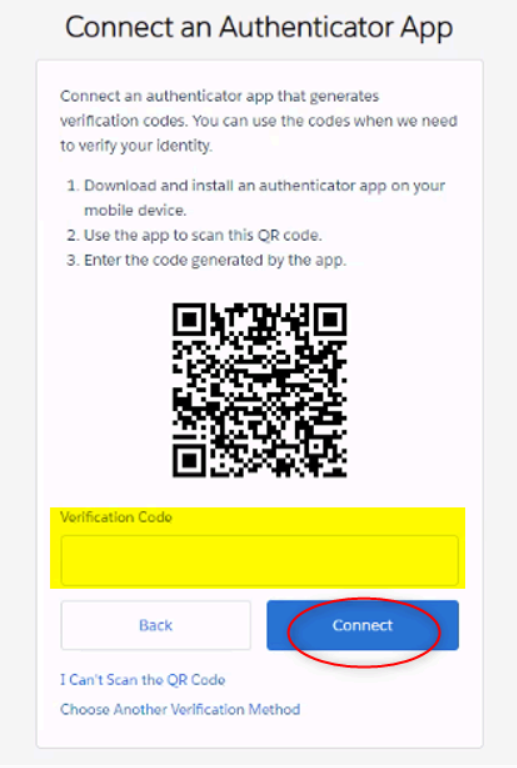
- Once you’ve scanned the QR code, grab the verification code from the authenticator app and populate it in the ‘Verification Code’ field on the Salesforce login screen, and click ‘Connect’. Be sure to have your mobile device close by whenever logging in to Salesforce so that you can quickly retrieve the verification code.
Was this helpful?
Thanks for your feedback!
