
These instructions apply to any Salesforce user who wants to use the Salesforce Authenticator app to satisfy Salesforce’s MFA requirement.
Steps:
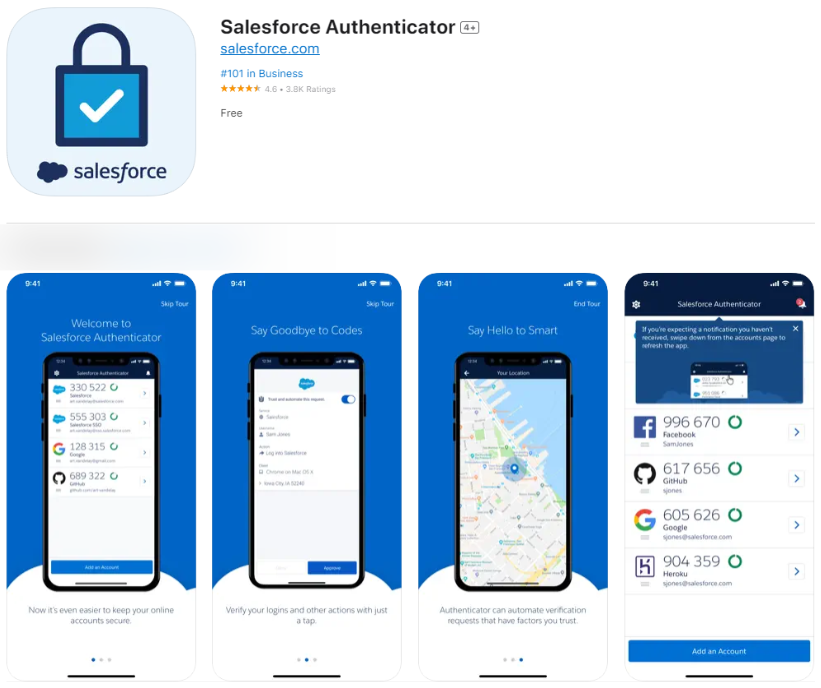
- Download the Salesforce Authenticator app on your mobile device.
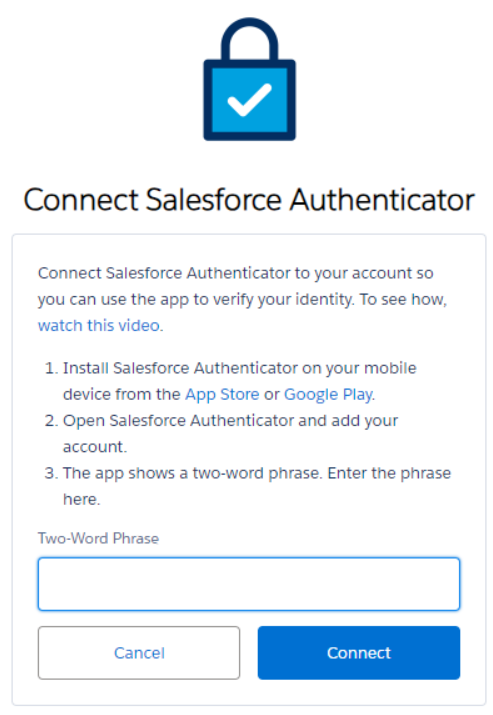
- Log in to Salesforce on your machine. Then, you will be prompted to connect the Salesforce Authenticator app with your Salesforce account.
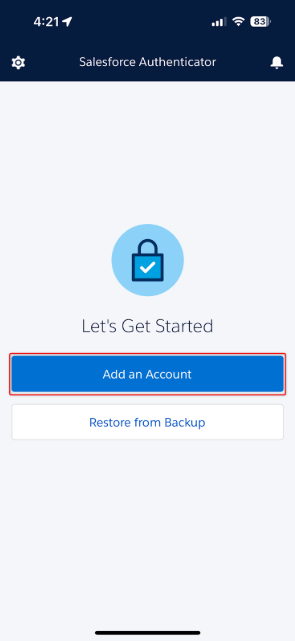
- Open the Salesforce Authenticator app on your mobile device and select ‘Add an Account’.
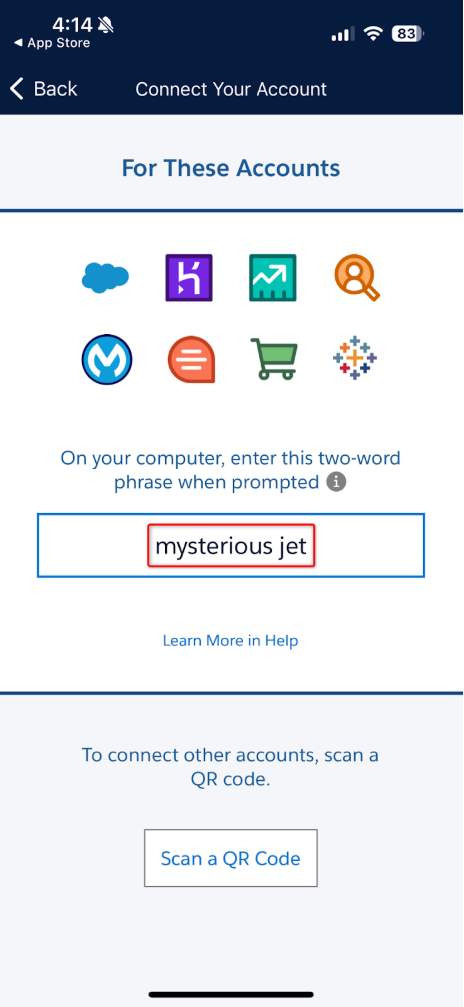
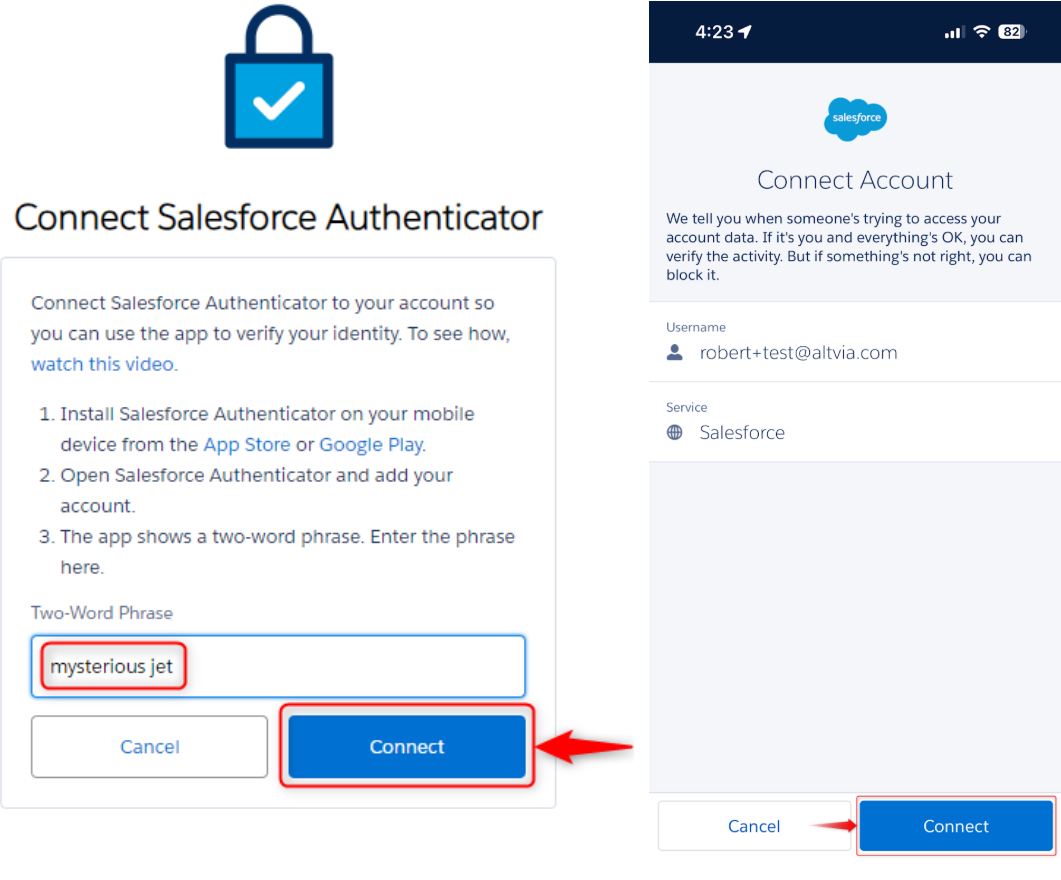
- The Salesforce Authenticator app will show you a unique two-word phrase. Remember this phrase, as you’ll need it again in the next step.
- Enter the unique two-word phrase from the previous step into the ‘Two Word Phrase’ field on the Salesforce login screen on your machine, then click ‘Connect’. You will be redirected to another screen on your mobile device within the app, where you will click ‘Connect’ again.
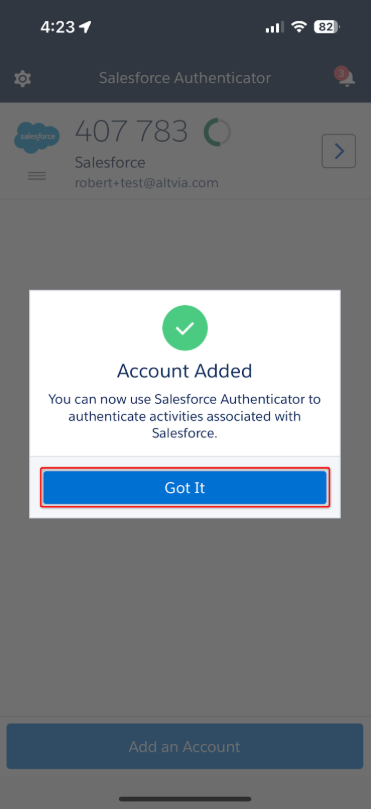
- You should now see a message on your mobile device that says ‘Account Added’. Be sure to have your mobile device close by whenever logging in to Salesforce so that you can quickly retrieve the verification code.
Was this helpful?
Thanks for your feedback!
